
This article focuses on how to view, download, or print a PDF summary for an Order or Service Request placed with Instrument Management Services (IMS).
- Login to ConnectCare and click on the ‘ORDERS’ module in the left navigation.
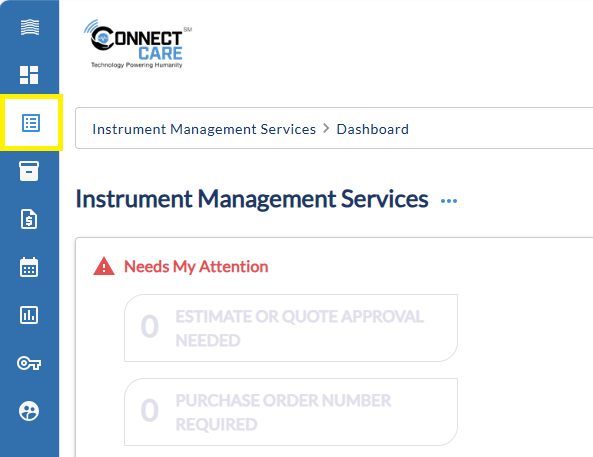
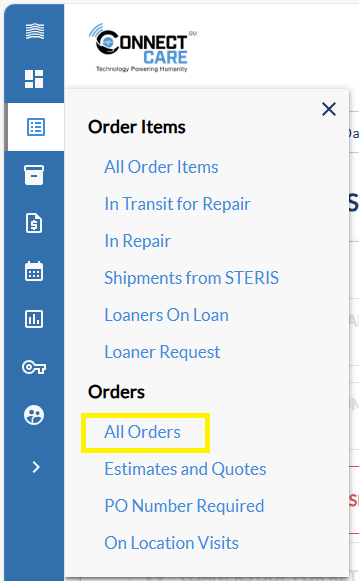
- Click on “All Orders” in the menu.
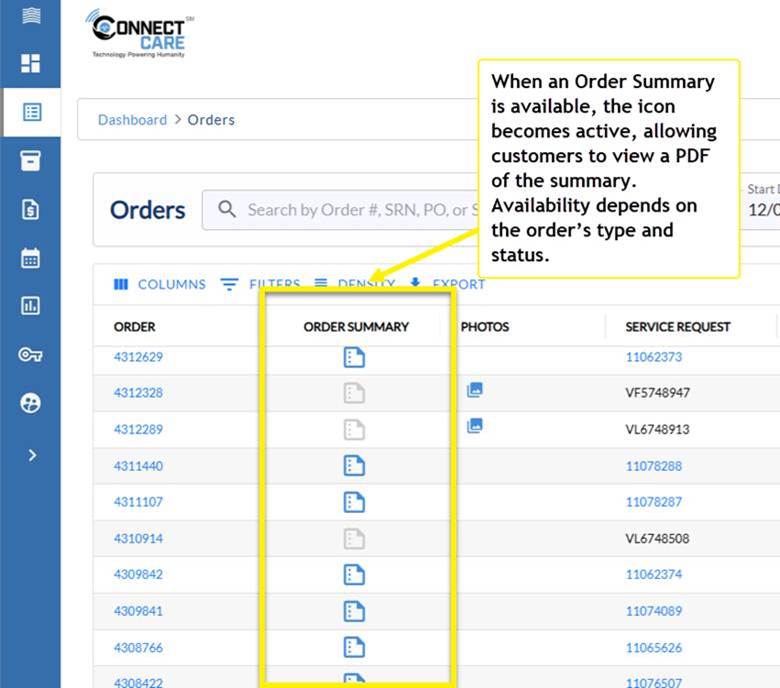
- Once on the “Orders” page, you can view a new ORDER SUMMARY column with an icon.
- The icon is blue and enabled when an Order Summary PDF is available.
- The icon is gray and disabled when an Order Summary PDF is not yet available.
- Click on the enabled icon and the Order Summary will generate a PDF in a new browser window.
- Once on the PDF, you can download/save or print.
Important Notes:
- Order Summary availability is based on the order's type and the order's status. If the icon is gray (disabled) it means the Order Summary is not yet available.
- The currency unit and amount on the Order Summary will reflect the currency in which the transaction took place (i.e., $, £, €, etc.).
- If you do not see pricing on the Order Summary you are viewing, it is because it has been suppressed on the report, based on the order's type, the Customer Account's classification, and your user role.
 Need help? Email us at connectcareims_support@steris.com.